


I volunteer on a committee. Nothing fancy. A few months back, one of our members asked me how to move a file from her personal folder into our shared OneDrive folder, so the whole group could get to it.
Simple enough.
Then came the next question: what’s the difference between letting people edit a document and letting them view it? Good question. So I showed her. Then I showed the next person, and then everyone else in our group.
Now I’m the unofficial tech support.
I don’t mind. I spent my whole career in IT, and old habits die hard. But it reminded me of something important. Most of the people asking me questions aren’t asking because they’re not smart. They’re asking because nobody ever took the time to show them, or they’re just not sure how to do it. And the people who run scams are counting on exactly that.
So, let’s talk about a scam that fools a lot of us careful people: the fake tech support pop-up.
What it looks like
You’re reading the news, checking your email, or answering a text, and all of a sudden a pop-up warning fills your whole screen.
It’s bright, it’s flashing, it’s loud, and sometimes it even talks to you. It’s meant to scare the manure out of you! It says your computer is infected, or your information is at risk, or your information has been exposed on the dark web. It usually has a Microsoft, Apple, or some other logo on it to make it look official. And it tells you to call a phone number right now.
Sometimes it seems like you can’t close it, because the browser looks frozen.
That’s the whole trick. First, they scare you, and then they hand you a phone number or a link.
Here’s the one thing to remember
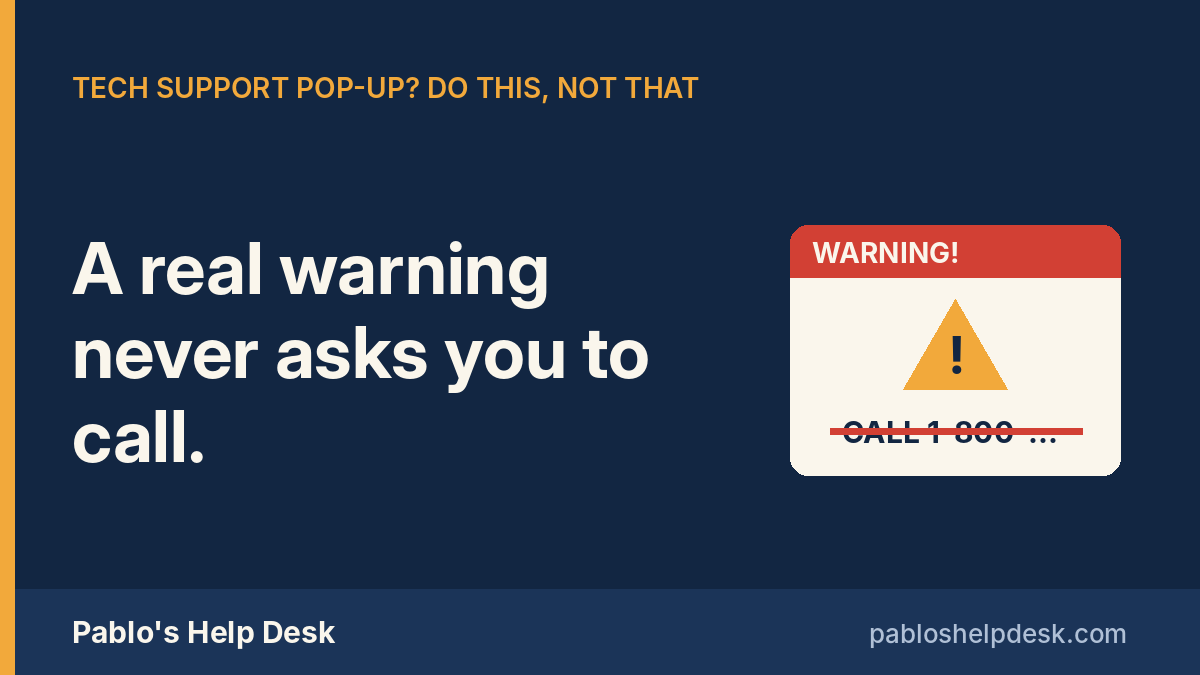
Real security warnings never ask you to call a phone number.
That comes straight from the Federal Trade Commission, and Microsoft says the same thing. Legitimate tech companies won’t contact you by phone, email, or text about a problem with your computer. That goes for Microsoft, Apple, your antivirus company, and your bank.
If a warning on your screen gives you a phone number to call, it’s a scam. Every single time.
Do this
1. Don’t call the number. Don’t call it even to “see what they say.” The person on the other end of that line is a professional, and fooling people is their whole job.
2. Close the browser. Click the X in the top corner of the browser window, not anything inside the warning.
If the browser won’t close:
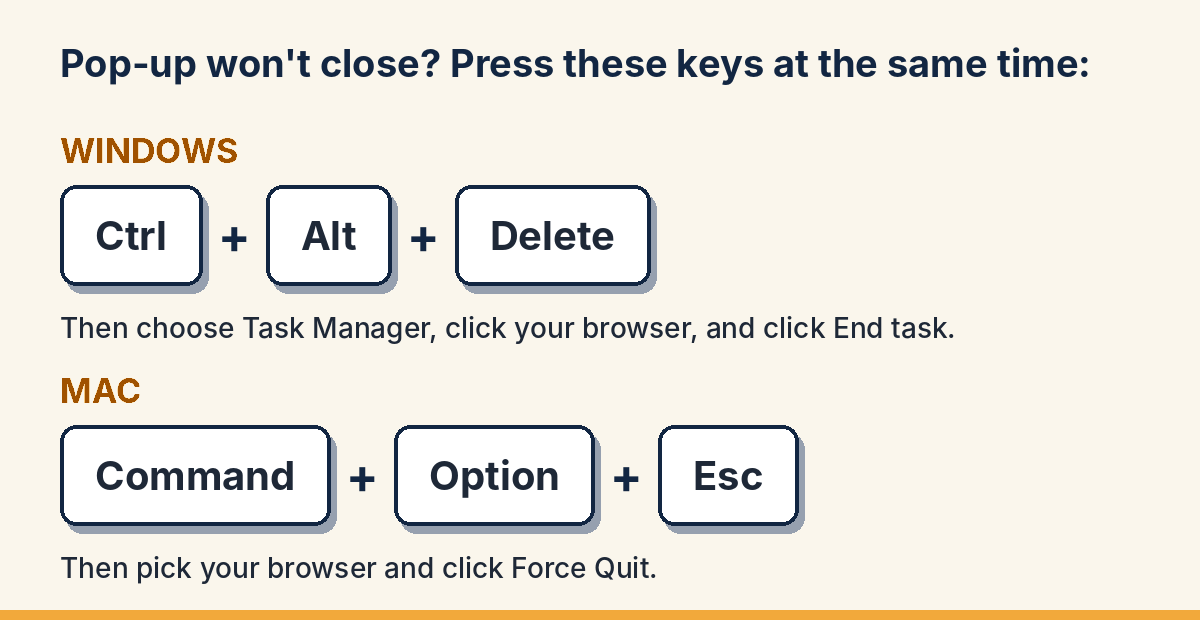
- On a Windows computer: press Ctrl + Alt + Delete at the same time, choose Task Manager, click on your browser (Chrome, Edge, or Firefox), and then click End task.
- On a Mac: press Command + Option + Esc at the same time, pick your browser from the list, and click Force Quit.
3. When you open the browser again, don’t restore the old tabs. If it asks whether you want to “Restore pages,” say no. Otherwise the pop-up can come right back.
4. Run the security scan you already have. Windows has one built in, called Windows Security. If you pay for an antivirus program, use that one instead. Only use a program that was already on your computer, never something the pop-up told you to download.
5. Tell somebody. Tell a family member, a friend, or your own unofficial tech support. These scams lose a lot of their power when we talk about them out loud.
Not that
- Don’t call the number. It’s worth saying twice.
- Don’t let anyone “connect” to your computer. Scammers ask for remote access so they can “fix” the problem. Once they’re in, they can see everything on your computer, plant real problems, and get into your accounts.
- Don’t pay for anything. Be especially careful if they ask for gift cards, wire transfers, cryptocurrency, or payment apps. The FTC says that’s how these crooks like to get paid, because that money is very hard to get back.
- Don’t click anything inside the pop-up. That means not “OK,” not “Cancel,” and not even the X inside the warning box. Close the whole browser instead.
If you already called
It happens, and these people are very good at what they do. According to the FBI, losses from tech and customer support scams topped $2.1 billion in 2025, across all ages. People 60 and older reported $7.7 billion in losses to all kinds of scams that same year. So you are not alone, and there is no shame in it.
What matters most is what you do next. Do these things right away:
- If they got into your computer, turn off your Wi-Fi or unplug the internet cable. Then run your antivirus scan.
- If you paid anything, call your bank or credit card company now. Use the phone number on the back of your card, not one they gave you. Tell them it was fraud and ask them to reverse the charge.
- If you gave them a password, change it. Then change it anywhere else you used that same password.
- Report it at ReportFraud.ftc.gov and on the FBI’s site, ic3.gov. Reporting helps them go after these outfits, and it helps protect the next person.
The bottom line
Here’s the whole thing in one line: a real warning never asks you to call a number or rushes you to click a link.
Write that on a sticky note and put it next to your computer. Better yet, put one next to every computer in the house.
And if a pop-up ever has you rattled, close it, take a deep breath, and call someone you trust. Just not the number on the screen.
Thanks,
Pablo
This article is for general information. It isn’t legal or financial advice. If you’ve lost money, contact your bank and the agencies listed above right away.
Sources: FTC: How to Spot, Avoid, and Report Tech Support Scams · Microsoft: Protect yourself from tech support scams · AARP on the FBI’s 2025 Internet Crime Report